
Searching Cases by Name
The North Carolina eCourts Portal is the main online route for a Durham case search. It is free for the public. Anonymous searching is allowed too. In Smart Search, type a last name and then a first name as prompted, or enter a full record number instead. Durham sits in the eCourts system. So once you pick a matching case number, the public view can pull together Case Info, Case Summary, Hearings, and other sections the Portal makes available.
One caution matters here. A name search can return up to 200 results. Hitting that limit means your Durham search needs more detail, not that no case exists. Run the basic Smart Search first. Then use the advanced Location filter to select Durham. Add a case type, a status, or a date of birth only when you know it is accurate.
- Open the Portal and enter the Durham party's last name, then first name, in Record Number or Name.
- Run Smart Search before using Advanced Search controls.
- Select Durham as the location and add accurate case-type or status filters when the result set is broad.
- Open the Durham case-number result and read Case Info, Case Summary, Hearings, Dispositions, and Financial sections in sequence.
The Portal guide identifies these common search controls for a Durham case search:
| Field label | Type | Required | Durham search use |
|---|---|---|---|
| Record Number or Name | Text | Yes for Smart Search | Enter a complete Durham case number or a party name. |
| Location | Advanced dropdown | Optional | Select Durham to narrow a broad statewide result set. |
| Search Type | Advanced dropdown | Optional | Includes Durham case number, party name, business name, citation number, and other context options. |
| Case type or status | Advanced dropdown | Optional | Use only after the Durham basic search returns results. |
Durham Case Search Portal
Durham is served by the statewide Portal. Its Location control narrows any Durham case search to the county. The system runs around the clock, according to the official FAQ, which recommends Chrome or Edge on Windows even though most phones and tablets work fine. Click a result and the Case Summary opens. That is the Portal's name for the chronological Register of Actions. Don't confuse the search screen with File & Serve. That is the separate electronic filing system rather than a public case lookup.
A free registered account adds a My Cases feature. It also opens a route to request qualifying elevated access. Registration changes nothing about sealed, confidential, or sensitive material, though. Those limits hold even when a case itself is easy to find.
Durham Case Search Filters
Advanced filters will not start a Durham case search from nothing. Per the official user guide, you run Smart Search first. Then refine the set it returns. Location, case type, case status, and a date-of-birth range can all narrow things down. One gap remains. Public view masks the month and day of birth and shows only the year. So that field never fully confirms identity.
The search type you choose matters as well. Within the Durham advanced context, the Portal accepts Case Number, Party Name, Business Name, or Citation Number. Business searches carry their own punctuation and wildcard cautions. Your Durham search gets more reliable the closer the search type matches the information actually in hand.
Portal order matters. Run Smart Search first, then apply Durham filters to results instead of expecting Advanced Search to search with every field blank.
Note: Durham advanced filters only refine completed Smart Search results, so a blank filter form will not run a case search by itself.
Searching by Case Number
The most precise Durham case search entry is a complete case number. The Portal's own materials publish no Durham sample format worth copying or guessing at. Enter the number exactly as it appears on the notice, citation, Portal record, or Clerk material. Keep every punctuation mark and dash in place. The payment guidance confirms the point separately. A complete case number includes its dashes plus the correct three-digit county component.
That makes the safest instruction simple: enter the complete number exactly as displayed. A partial number helps only within the Portal's documented wildcard rules. If a number returns nothing, check each character and the Durham location. Then check the case's eCourts conversion status. Check any restriction before deciding the record is absent.
Durham Case Search Wildcards
Wildcards can tighten a Durham case search without opening the door to unlimited partial-name lookups. The official guide sets the floors. At least four case-number characters must come before an asterisk. For a last name, the minimum is three characters. A first-name wildcard needs one character plus the asterisk.
Those thresholds explain why a very short fragment may fail or flood you with results. When a Durham name search nears the result cap, add the given name you have. Then apply the Durham Location filter. Do that before you change the spelling or treat the result as final.
What a Case Search Returns
Opening a Durham case number shows a Case Summary or Register of Actions. Not every item ever filed shows up. Depending on availability, the public view can display Case Info, Assignment, Party, Case Events, Dispositions, Hearings, and Financial information. Civil and criminal cases show different fields. Documents, judgments, and images appear only when Portal access rules permit their display.
Treat what you see as a court record of activity. A Case Event is a logged procedural step. A disposition records a resolution or status, and its practical meaning depends on the case type. A judgment-index amount reflects the amount at entry, not necessarily a current payoff. When current case context is available, check the Durham Portal's Smart Search record.
| Case Info | Identifying and classification information opened through the selected Durham case number. |
|---|---|
| Assignment | Court or case-assignment information where the Durham Portal populates it. |
| Parties | Durham case-connected people or organizations; public dates of birth mask month and day. |
| Case Summary | The Durham Case Summary is the chronological Register of Actions and Case Events, not a replacement for every filing. |
| Hearings and dispositions | Scheduled Durham court events and recorded outcomes that need case-specific reading. |
| Financial | Durham court financial information, where available, should not be inferred from a judgment index alone. |
Durham Case Search Reading Order
Start with Case Info and Assignment. These two tabs tell you the court and the case type. Treat the Party section as a way to confirm identity, nothing more. Then work through the Case Summary and Case Events in date order. Cross-check any hearing entry against the Hearings section itself. Read Dispositions before you call anything finished. Use financial details only when the record actually shows them.
This order guards against two common Durham mistakes. An old event date is not always the current setting, and a judgment-index figure is not always the amount due today. If the Case Summary names a document that will not display, ask the Durham Clerk for a copy. Ask about the rule that governs access, too.
Note: A Durham Case Summary lists events chronologically. But the newest hearing should still be checked in Hearings.
Durham Case Search Migration Times
Durham joined eCourts in April 2024 through the Track 4 conversion. Events carried over during that transition can show a 12:00 a.m. time stamp. That stamp is a migration artifact. No midnight hearing took place. Going digital never stripped the Clerk of the historical paper records, either.
The statewide rollout finished in 2025. Even so, an old document can stay offline after conversion. A Durham case search may then need the Clerk. The Durham Portal handles current searches. The Clerk keeps the paper and historical layer that conversion left only partly visible.
Statewide vs County Case Search
Durham has no separate county case-search site beside the statewide system. One eCourts Portal serves every participating eCourts county. The Location filter narrows it to a Durham view. A statewide name search can be widened when necessary, but for a known Durham matter, selecting Durham first is the better route.
| Portal scope | Statewide search | Durham-focused search |
|---|---|---|
| Location | Participating North Carolina eCourts locations | Location filter set to Durham |
| Best use | When the county is unknown or more than one location matters | When the case is expected in Durham County |
| Case detail | Open the matching case number for its available sections | Open the Durham case number for its available sections |
A Durham Portal result starts the work. It cannot prove that no record exists elsewhere, nor that every document in a court file is public.
Durham Case Search Access Tiers
Durham case search access comes in three practical levels. Anonymous users can search public case information. A free registered account adds My Cases. Qualifying users may request elevated access for some statutorily restricted material. The Portal FAQ draws a firm line: elevated access still hides sealed, confidential, and sensitive documents.
A public terminal at the Durham courthouse can open material your own device cannot. The Clerk can also steer you to the right department for a paper file, a certified copy, or a restricted-record question. So the portal and the Clerk answer different access needs.
Note: Durham elevated access serves qualifying statutory needs. It does not make sealed or confidential documents public.
Access and Restricted Cases
North Carolina General Statute 7A-109 directs the Clerk to keep court records, files, dockets, and indexes open for public inspection during regular office hours unless access is prohibited. The Durham Portal follows the same limits. A case being searchable does not mean sealed, confidential, or sensitive documents appear.
Juvenile records stay closed under G.S. 7B-3000 except as law or a court order allows. Domestic-violence information carries its own elevated-access rule for qualifying roles. Family, adoption, guardianship, mental-health, and special-proceedings information can also be restricted. A gap in Durham search results proves nothing. Do not infer that no case exists.
Durham Case Search No-Result Checks
A blank Durham case search often has a simple fix. Check spelling, name order, the full case number, and the Location selection first. Then ask whether the case converted to eCourts. Ask whether it sits in older paper material, and whether restrictions apply. The Durham Portal FAQ lists the usual reasons a public search shows nothing. Spelling, number format, conversion status, and restrictions top that list.
For a case date, use Search Hearings. Set Location to Durham and keep the date range narrow. Compare that result with the individual case record. Anything still uncertain goes to the Durham Clerk department for that case type.
Note: a Durham Portal miss can reflect a search or access limit. Do not call a missing public result proof that no case exists.
Durham Case Search Clerk Route
The Durham Clerk of Superior Court is the one records office. It serves both Superior Court and District Court matters. Route case-specific questions to the matching department. Options include District Criminal/Traffic, Superior Criminal, Civil, and Family Court. Ask about a public-access terminal when an online search stalls.
Kiosks reached the Durham courthouse in June 2025 as part of the eCourts rollout. They give users Portal access plus printing, scanning, filing tools, payment services, and case-event access.
The official eCourts kiosk announcement covers the kiosks now at the courthouse. It describes the scanners, printers, and payment services.
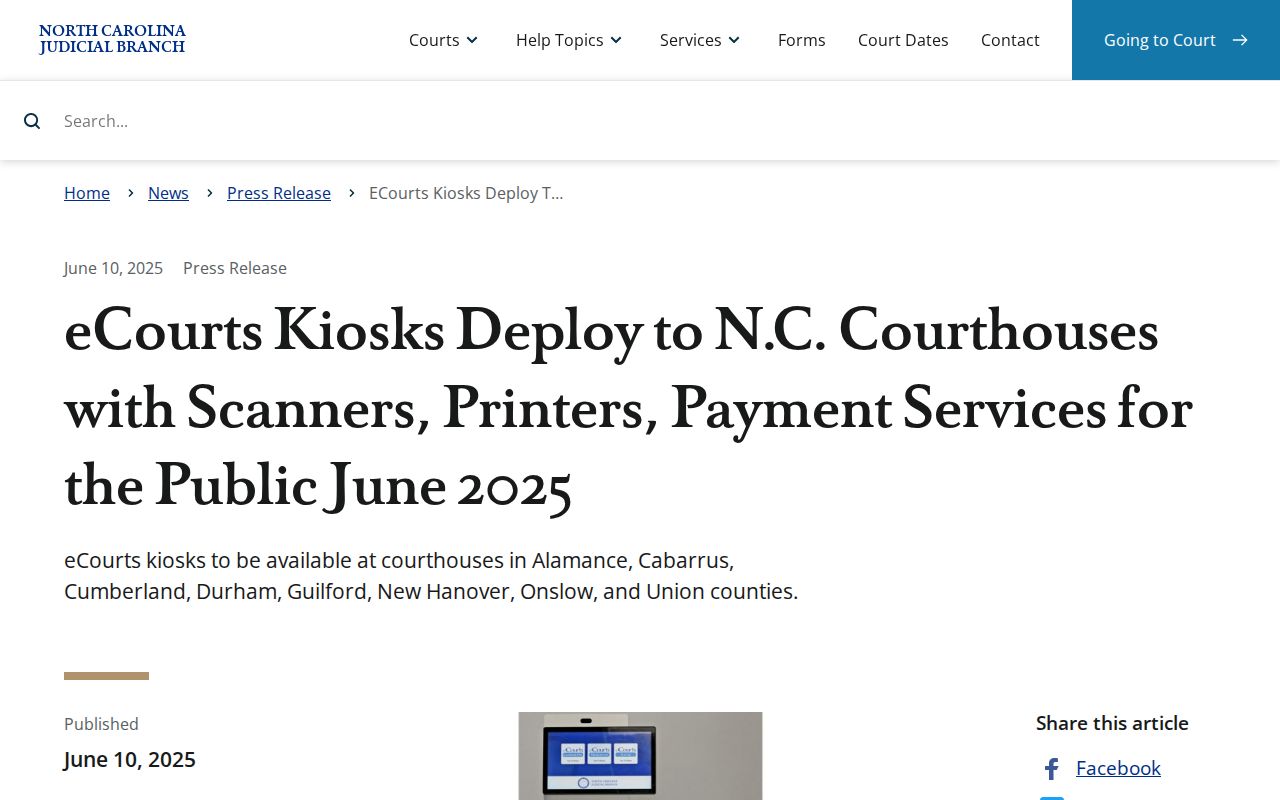
The kiosk program gives Durham case-search users a courthouse backup. When a device, printer, scanner, or payment tool is unavailable, that documented alternative is on site.
Durham Clerk of Superior Court
510 S. Dillard Street
Durham, NC 27701
919-808-3000
AOC-CR-314 is a separate route. Mail it in or bring it in person for a certified single-county criminal or infraction name search. It does not pull every case file. Juvenile information, sealed cases, and unreturned warrants are omitted.